PUNCH LIST

SiteInspect
Punch and snag lists
A punch list that closes, item by item, with the photo to prove it.
Raise it on the walk, tag it to a trade and a room, and move it through open, fixed and verified until the list is empty. The after photo is asked for at the moment it is easiest to take, and the whole thing prints as one numbered report.

Fourteen days free from your first project.
Android. No ads, no account.
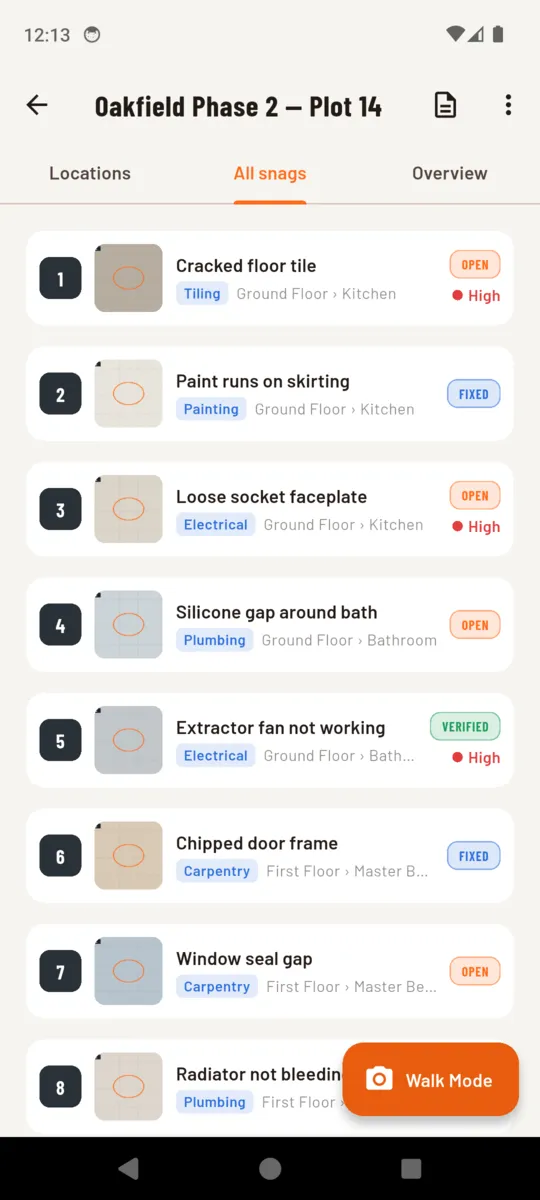
Punch list, snag list, same list
A punch list is the tail end of a job written down: the door that binds, the socket three inches off centre, the paint run on the stairwell. Small things, individually trivial, collectively the reason a handover slips a fortnight. It is called a punch list in the United States and a snag list in Britain and Ireland, and the document is identical either side.
SiteInspect does not pick a side. Settings has a terminology field holding the single word the app uses for an item, and it is free text. Type “Punch item” and every list, every counter and the report title itself change with it — the cover page prints “PUNCH ITEM REPORT” rather than the default “SNAG REPORT”. Teams who say “defect”, “issue” or “observation” get the same treatment.
The rest of the model is deliberately small. An item has a number, a title, a description, a place, a trade, a person, a priority and a state. Anything more elaborate than that gets ignored on a wet Tuesday with a phone in one hand.
Three states, because two are not enough
Most lists have a tick box, which quietly conflates two different claims: the trade saying they have done it, and you saying you have seen it. SiteInspect keeps those apart.
| State | Usually set by | What it means |
|---|---|---|
| Open | You, on the walk | Raised and not yet dealt with. This is where every item starts. |
| Fixed | The trade, or you on their word | Work has been done. The app offers an after photo at this moment, and it is the best moment to take one. |
| Verified | You, back on site | You have looked at it yourself and you are happy. Only this state closes the loop. |
The project overview counts the three separately and shows a ring of how much of the list is closed, so “nearly done” has a number behind it.
What happens when you tap Fixed
Moving an item out of Open prompts you for an after photo. Take it and the app links it to the first photo already on that item, which is how before and after end up paired without you managing filenames. Skip it and nothing is lost, but the report will show a before with no after next to it, which tends to be its own reminder.
Then the phone gives a short buzz and a rubber stamp reading FIXED lands over the screen, in blue for fixed and green for verified. It is a second of theatre on a job that has very little, and it is a surprisingly good way of knowing the tap registered without looking twice.
Before, after, and everything else
Photos on an item carry one of three labels. Before is the state you found it in. After is the state it was left in, and it holds a link back to the specific before shot it answers. General is everything else — the wider view, the model number, the thing you photographed because you were not sure yet what it was.
Any of them can be annotated before it is saved: draw on it, circle the thing, and the marked-up version is what prints while the untouched original stays on disk. Photos are downscaled on the way in and printed at report quality rather than full camera resolution, which is what keeps a fifty-item report emailable.
In the report the pair sits together, each with its own caption and, if you want them, its timestamp. Photo size is a report setting with three steps, so a list that is mostly paint marks and a list that is mostly structural detail do not have to print the same way.
Walk Mode: one hand, one thumb, keep moving
Raising items one at a time through a form is fine at a desk and hopeless on a floor with forty things wrong with it. Walk Mode is the camera-first version of the same job.
- 1 Set where you are, once. Pick the location at the top and it stays put. Locations nest one level, so “First floor / Bedroom 2” is as deep as it goes and as deep as it needs to.
- 2 Shoot the thing. Full-screen camera. Annotate it there if the photo alone will not carry it.
- 3 Title, trade, priority. A short line, a trade chip and low, medium or high. The trade stays selected for the next one, because you are usually walking a floor with one sub.
- 4 Save and next. The counter ticks up and the camera is already open again. The full description, the assignee and the due date can wait until you are sitting down.
Ten tags out of the box
Every item can carry one trade tag, and ten are seeded on first run — nine trades plus a catch-all. Add your own, rename them, and the report can be split so each sub gets only their own pages instead of the whole list.
- Electrical
- Plumbing
- Carpentry
- Painting
- Tiling
- Roofing
- HVAC
- Groundworks
- Cleaning
- Other
Tagging is what turns one long list into six short ones. A tiler does not need to read about the roof.
What the report prints
The cover carries your company name, logo and inspector, the project, and the list's own word in the title. Then a summary, then one block per item: a numbered chip, the title, a coloured status pill reading OPEN, FIXED or VERIFIED, and a row of location, trade, assignee, priority and due date. Below that sit the description, the photos and any comments as bullets. Closing comments and a signature block finish it.
Four report themes, A4 or Letter, three photo sizes, your own date format, and a switch to leave completed items out entirely if the client only wants the outstanding ones. The same list also exports as a spreadsheet when someone wants to sort it themselves.
Numbers are the part worth protecting. Once you have exported a report the sequence freezes, so an item that went out as number 47 is still number 47 after you have added twenty more and deleted three. Silent renumbering is how a sub ends up putting right the wrong door.
Printed on every report
This report is a documentation aid prepared with SiteInspect. It does not constitute a professional survey, structural assessment, or statutory inspection.
What a punch list means beyond that is a question for your contract, not for an app. Whether a signed-off list releases a payment, ends a defects period or completes a handover is set by what you agreed with the client. SiteInspect records what was found, what was done about it and when — the paperwork around it is still paperwork.
Why it beats a spreadsheet on site
- Photos live on the item. Not in a camera roll that someone has to match up later.
- Fixed is not the same as verified. Two claims, two states, no argument about which was meant.
- Numbers you can quote. Sequence freezes once a report has gone out.
- Split by trade. Each sub gets their own pages instead of the whole list.
- Works with no signal. Everything is on the phone. Basements included.
- No ads, no account. Open the app and your projects are there.
Questions
What is a punch list?
The running list of small items left to put right before a job is handed over. Each one is a place, a description, usually a photo, and the trade who has to come back for it.
Is a punch list the same as a snag list?
Yes. Punch list is the American term and snag list the British one, for the same document. SiteInspect lets you set the word it uses, so the app and the report both say whichever one you say.
What are the three states an item moves through?
Open when you raise it, Fixed when the trade says it is done, and Verified when you have been back and looked. Fixed and Verified are different on purpose, because they are different people.
How do before and after photos get paired?
When you move an item to Fixed the app offers to take the after shot there and then, and links it to the first photo already on that item. The report prints the pair side by side.
Do item numbers ever change?
Not once a report has been exported. Numbering freezes at that point, because a sub quoting item 47 off an emailed PDF should still be looking at item 47 next week.
What does the free version cover?
Two projects and fifteen items in each, after a fourteen-day trial of everything. There are no ads on any tier, and items you have already logged are never hidden.
Walk the next handover with the list in your hand
Fourteen days of everything, then two projects and fifteen items each stay free. No ads on any tier.